How to Play Pokemon RPGXP Games on Android: JoiPlay Setup Guide
A source-first Android guide for RPG Maker XP Pokemon fan games, with clear steps for the JoiPlay app, RPG Maker plugin, game files, controls, saves, and compatibility limits.

What You Need to Know Before Playing RPGXP Games on Android
The phrase how to play RPGXP Pokemon games on Android sounds like one installation task, but it is really a compatibility check followed by a setup process. RPGXP usually means RPG Maker XP, often shortened to RMXP in fan-game communities. A project may also use Pokemon Essentials or another toolkit. Those labels describe how a game was made; they do not promise Android support, working touch controls, or a stable save system.
The safest route is to start with the project page or developer thread, not with a random APK mirror. Check whether the author names Android, JoiPlay, or a compatible runtime. If the project only lists Windows and provides a desktop executable, treat Android play as experimental. A browser-first game may be a better fit if you want instant mobile access; the Pokemon browser games guide covers that different intent.
This page explains the repeatable parts of the process: how to verify the source, install the official helper components, add a game folder, select the executable, adjust controls, protect saves, and decide when to stop troubleshooting. It does not turn an unsupported project into a supported one and it does not provide unofficial APK repacks. For the broader engine and completion-status decision, use the Pokemon RPGXP games guide.
Source first
Find the author, maintained directory entry, or community thread before downloading a game archive.
Plugin matters
JoiPlay is the launcher layer; the matching RPG Maker plugin handles the game engine family.
Compatibility varies
The same setup may work for one project and fail for another because scripts, codecs, controls, or file paths differ.
Before You Start: Check the Project, Phone, and Save Risk
Do a short research pass before installing anything. A completed fan game, a demo, a WIP build, and a creator showcase have different expectations. A project can be playable on Windows while still failing on Android because of unsupported scripts, missing fonts, video playback, input handling, or a desktop-only dependency.
Your phone also matters. Android version, free storage, screen size, touch response, controller support, file permissions, and background memory limits can change the experience. Do not interpret a successful launch as proof that the whole story will run correctly; test a new area, a battle, a menu, and a save before investing hours.
- Read the project notes. Look for supported platforms, required runtime, plugin notes, known bugs, and whether Android or JoiPlay is explicitly mentioned.
- Keep the original archive. Store an untouched copy of the downloaded archive so you can re-extract the game if a file is moved or overwritten.
- Use enough storage. Leave room for the archive, extracted folder, temporary files, and at least one save backup; do not unpack into a nearly full phone.
- Test before committing. Launch the title screen, start a new game, try the core input, enter a battle or map transition, save, close, and reload.
Official Source and Version Check for JoiPlay
This guide checked the official JoiPlay website on August 22, 2026. The site directs readers to its official downloads and Patreon release channel for current builds. The official release context reviewed for this page lists JoiPlay 1.21.000 and the RPG Maker plugin 1.22.00 on February 14, 2026. Treat those numbers as a dated verification point, not as a permanent promise: revisit the official page before installing a new build.
There is no need to guess a CDN path or use a third-party mirror. The official page is the stable destination when a direct file URL is temporary, login-gated, or not publicly verifiable. The project you want to play may also require a particular plugin version, so follow its own notes instead of assuming the newest component is always the correct one.
| Check | Verified information | What to do |
|---|---|---|
| JoiPlay app | 1.21.000 shown in the official February 14, 2026 release context | Use the official JoiPlay page and confirm the build before installing. |
| RPG Maker plugin | 1.22.00 shown in the same official release context | Install the plugin required by the project; do not mix random plugin mirrors. |
| Platform | Android | Check the project notes and your Android version; no universal compatibility claim is made. |
| File size and package | Not published as a stable fact on the checked official page | Use the official page fallback and verify the downloaded file through its source context. |
| Direct download | No stable, independently verified direct file URL used here | Do not guess a signed CDN link; follow the official downloads or release page. |
Step-by-Step: How to Play an RPGXP Pokemon Game on Android
The exact labels can change between JoiPlay builds and Android versions, but the order is stable: install the helper components, prepare the game folder, add the project, choose its executable, and test a save. Keep the game folder together. Moving only one file out of the extracted directory is a common reason for missing assets or startup errors.
The visual below is a conceptual setup flow, not a screenshot of JoiPlay. Use the text steps as the source of truth, because a project may use a different folder name, executable name, or plugin requirement.
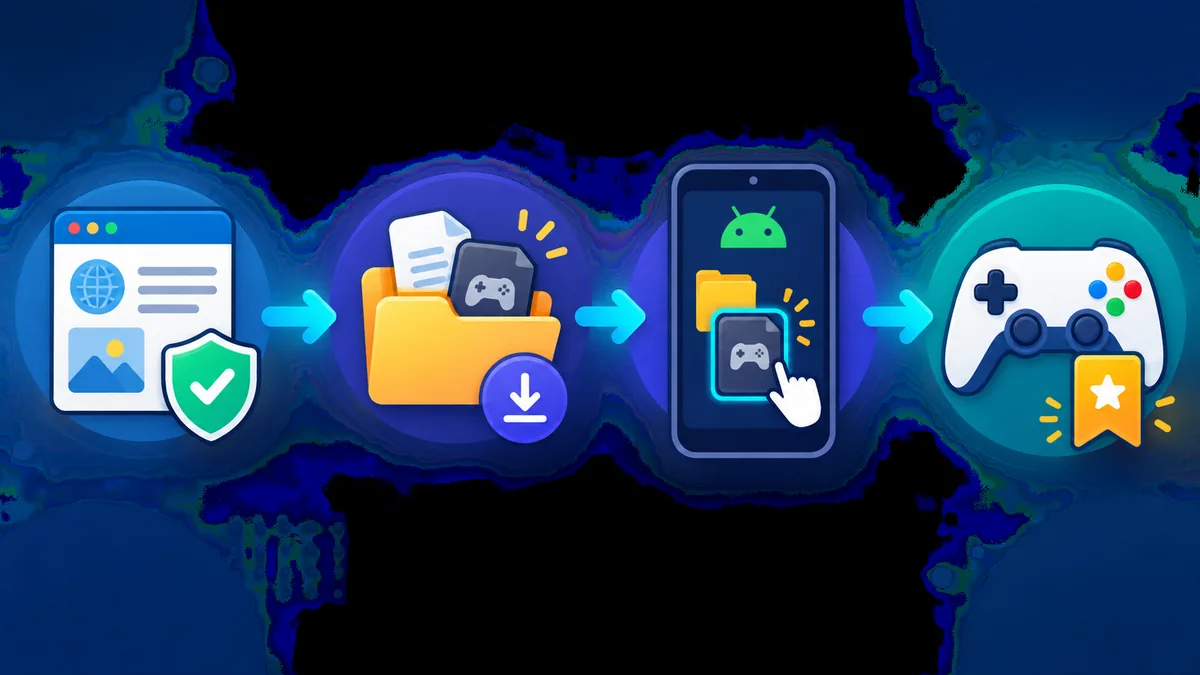
- 1. Install JoiPlay from the official source. Use the official JoiPlay downloads or release page. Avoid repacked APKs that hide the publisher, add unrelated installers, or promise universal compatibility.
- 2. Install the RPG Maker plugin. Add the RPG Maker plugin that matches the project notes. JoiPlay and the plugin are separate pieces, so installing only the launcher may not be enough for an RPG Maker XP game.
- 3. Extract the game archive. Unpack the complete project into a folder that Android can read. Keep the executable, graphics, audio, data, and supporting folders together; do not launch directly from a partial archive.
- 4. Add the project in JoiPlay. Use the add-game action, browse to the extracted folder, and select the executable or project entry named by the author. If the project includes a launcher note, follow it instead of guessing.
- 5. Choose the engine and test launch. Accept the project-specific engine settings, start at the title screen, and check whether fonts, audio, menus, battles, and map transitions behave normally.
- 6. Make a test save. Save in-game, close JoiPlay, reopen the project, and load the save. If the save fails, stop and fix the folder or permission issue before beginning the main story.
Controls, Screen Size, and Save Backups
RPGXP games were usually designed around a keyboard, so touch controls can feel awkward even when the game launches. Start with a small on-screen layout, map the directional inputs and confirm/cancel actions, and keep the interaction area away from the phone's gesture bar. A Bluetooth controller can help, but it does not fix unsupported scripts or missing assets.
Save protection is more important than a perfect layout. Keep one backup before changing JoiPlay settings, moving the game folder, or updating a plugin. If the project stores saves beside the game files, back up that folder. If Android stores saves in an app-specific location, use the app's documented export or file-access method rather than deleting data blindly.
Map only what you need.
Begin with movement, confirm, cancel, menu, and any key used by the project's notes. More buttons can make a small screen harder to read.
Test text and menus.
Long-press, touch focus, and virtual buttons can behave differently from a keyboard. Check dialogue, inventory, settings, and battle menus before a long session.
Back up before updates.
Copy the save folder or use the project's documented backup method before replacing files, changing runtime settings, or moving to another device.
Keep a desktop fallback.
If Android becomes unstable, preserve the original folder and save so you can continue on the platform listed by the developer.
RPGXP Android Compatibility Troubleshooting
A failed launch does not always mean that the game is corrupt. It may be an unsupported script, a missing runtime component, a wrong executable, a permission problem, or a project that was never intended for mobile. Change one variable at a time and keep the original files untouched so you know which change helped.
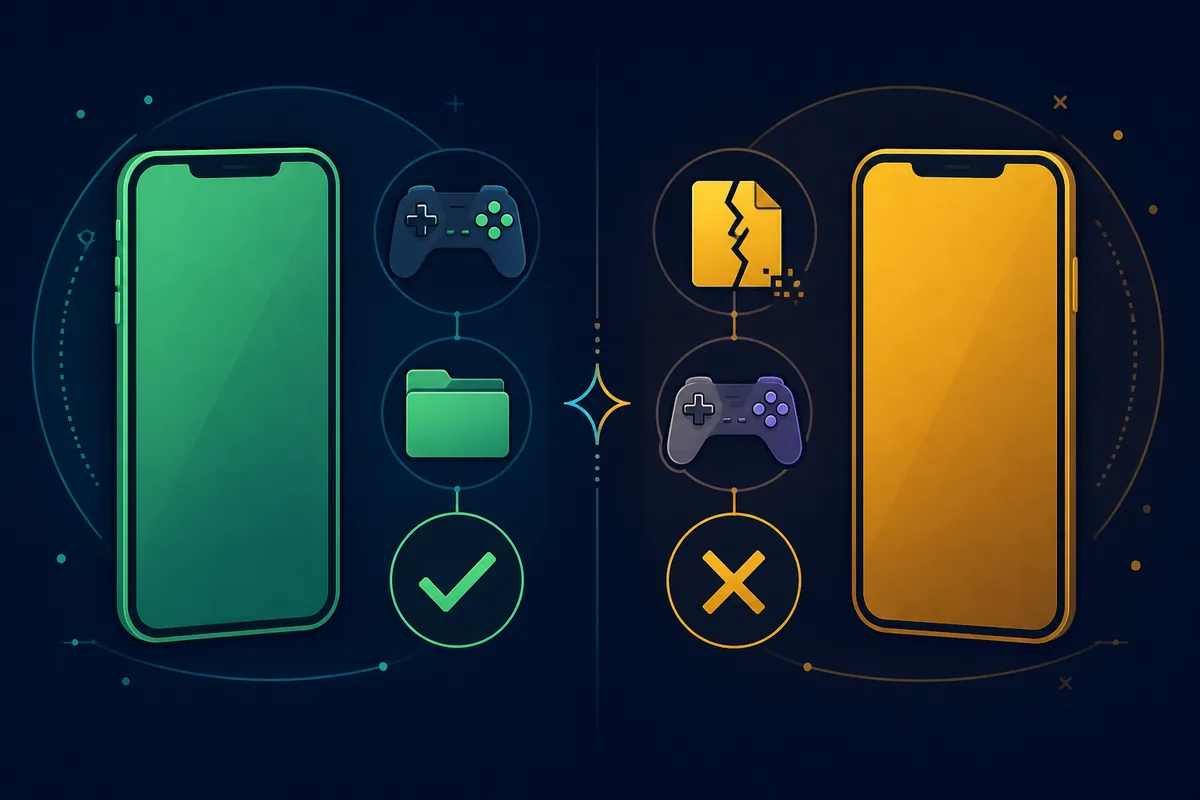
The guide's compatibility illustration separates a project with a clear folder, input path, and save test from one with a broken archive or mismatched runtime. Use that distinction when deciding whether to keep troubleshooting or move on to another project.
| Symptom | Check first | Safer next action |
|---|---|---|
| The project does not appear in the picker | Confirm that the archive was fully extracted and that you selected the folder or executable named by the author. | Re-extract into a simple folder path and keep the original archive; do not rename random files. |
| Black screen or crash at launch | Read the project notes for scripts, codecs, fonts, or desktop-only requirements. | Test the documented plugin/runtime combination and stop if the project has no Android support note. |
| Touch controls do not respond | Open the input settings and test movement, confirm, cancel, and menu actions separately. | Use a smaller custom layout or a controller; do not assume every key is mapped automatically. |
| Audio or video fails | Look for unsupported media formats and whether the project expects desktop codecs. | Use the project's compatibility guidance or skip the project rather than downloading codec packs from mirrors. |
| Save disappears | Verify the save location, Android permissions, and whether the folder was moved or cleared. | Restore the backup, keep the folder stable, and test a save/reload cycle before continuing. |
What This Guide Does Not Promise
JoiPlay is a compatibility layer for supported game formats; it is not an official Pokemon Android release and it cannot repair every RPGXP project. A project may still fail because of custom scripts, unusual plugins, missing media, controller assumptions, or a save system that expects Windows. Compatibility reports from another player are useful clues, not a guarantee for your phone.
This is also not a direct-download page. We link to official or community research sources and explain how to check a project trail, but we do not publish guessed APKs, ROM mirrors, safety-scan claims, or permanent file URLs. If your goal is simply to play a no-download Pokemon-style idle RPG on a phone, Pokechill runs in the browser. If you want a broader list of fan projects, start with best Pokemon fan games and then narrow by platform.
Stop rule
After you have verified the source, tried the documented plugin, confirmed the complete folder, and tested a save, repeated crashes are evidence of a project-specific compatibility limit—not a reason to keep downloading random repacks.
How to Play RPGXP Pokemon Games on Android FAQ
Sources and Media Note
For the installation path and official-source boundary, this guide checked the official JoiPlay website, which directs readers to current downloads and the official release channel. The version check also used the official JoiPlay release context listing JoiPlay 1.21.000 and RPG Maker plugin 1.22.00 on February 14, 2026.
For player-side project research, the existing Pokemon RPGXP games guide links to community directories and explains completed versus demo projects. Community sources are discovery aids, not proof that a file is safe or compatible. Always follow the developer's own instructions and keep a save backup.
The three local WebP visuals are AI-generated editorial illustrations created for this guide after checking official JoiPlay pages and relevant community/tutorial source types. They are not official screenshots, do not show a real JoiPlay interface, and do not represent a specific fan game. The actionable instructions remain in crawlable HTML text.
Source and compatibility details can change. Recheck the official JoiPlay page and the individual project notes before installing or updating a game.
Last updated: August 22, 2026